
Email Attachment File Size Limit: Outlook, Gmail, Exchange
TL;DR
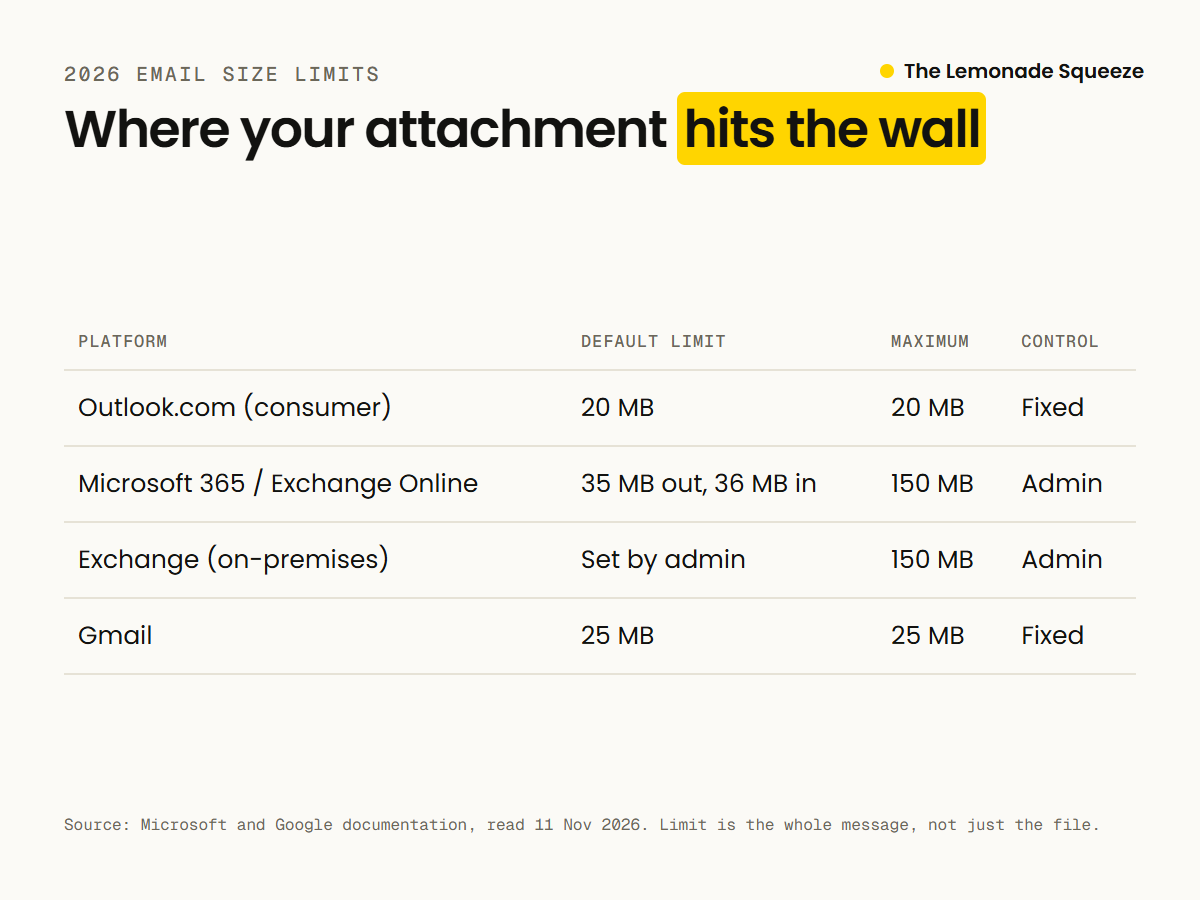
Microsoft 365 (Exchange Online) sends up to 35 MB by default and receives up to 36 MB, and an admin can raise both to 150 MB.
Gmail sends up to 25 MB per email. Anything bigger is swapped for a Google Drive link instead.
Consumer Outlook.com caps attachments at 20 MB, then offers a OneDrive link.
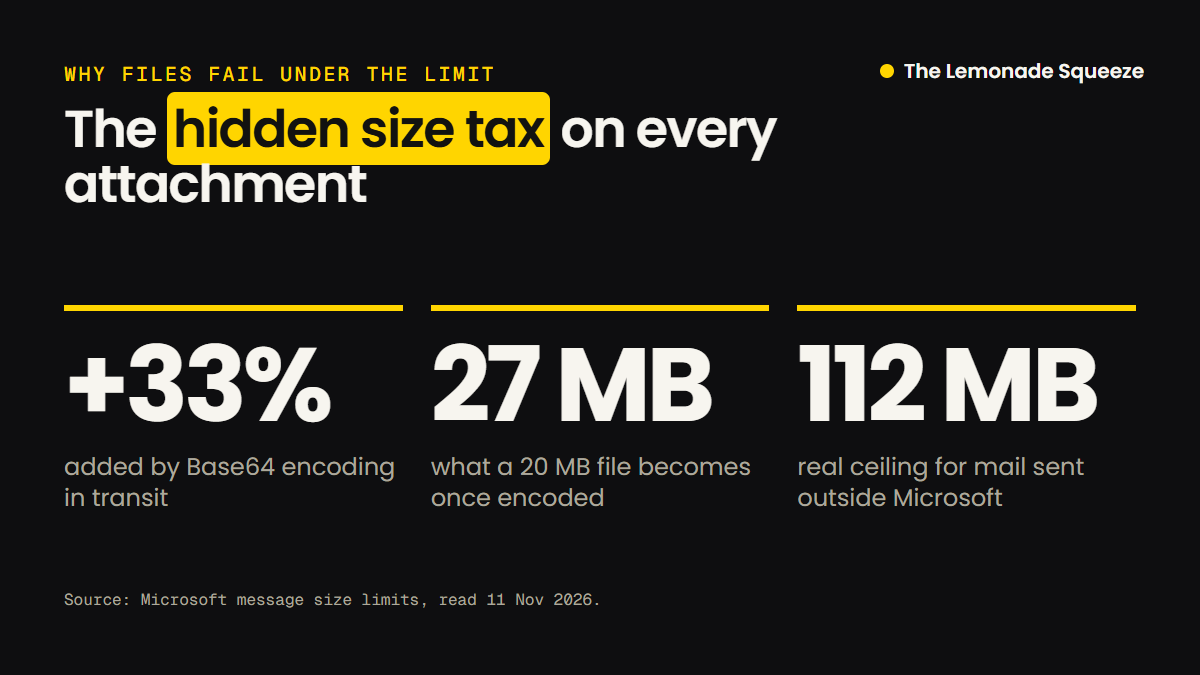
Base64 encoding adds about 33% in transit, so a 20 MB file travels as roughly 27 MB and can breach a 25 MB limit.
For large DWG, RVT or MP4 files, a dedicated transfer tool with expiring links and an audit trail beats an email attachment.
The short answer: Microsoft 365 sends up to 35 MB by default, Gmail up to 25 MB, and consumer Outlook.com up to 20 MB. An admin can push Microsoft 365 as high as 150 MB. If you regularly email DWG, RVT or MP4 files to clients, those caps will hit within weeks, so here are the exact 2026 numbers and your options when a file is too big.
What Is the Default Email Attachment Size Limit in Outlook and Microsoft 365?
There are two different "Outlooks", and they have different limits. Consumer Outlook.com caps an attachment at 20 MB, then offers to share it as a OneDrive link instead. Business Microsoft 365, which runs on Exchange Online, is more generous: it sends messages up to 35 MB and receives up to 36 MB by default. Microsoft documents these figures on its own message size limits page, last updated November 2026.
One catch trips people up. The limit is on the whole message, not just the file. The total includes the message body, the headers, every attachment and the extra size that encoding adds. So a 34 MB file can still fail a 35 MB limit once the rest of the email is counted.
The client you use matters too. Outlook on the desktop will send right up to the mailbox limit. Outlook on the web quietly knocks about 25% off that limit to leave room for encoding, so the same file can send from the desktop app and bounce from the browser.
How to Raise the Microsoft 365 Limit
You need admin access. In the Exchange admin centre, go to Recipients, then Mailboxes, then Message size restrictions, and set a new maximum up to 150 MB. For several mailboxes at once, PowerShell is quicker: Set-Mailbox -Identity [email protected] -MaxSendSize 150MB -MaxReceiveSize 150MB. Remember the lower of the sender's and the recipient's limit always wins, so raising your side does not guarantee the message lands.
What About On-Premises Exchange Servers?
If your mail runs on your own Exchange server rather than the cloud, there is no single number to quote. The limit is whatever your admin set, and it is often well below the cloud's 35 MB default. Exchange also checks the size at several points: the organisation transport settings, the send and receive connectors, and the per-mailbox send and receive values.
The strictest limit on the path wins. If your mailbox allows 100 MB but a connector on the route caps at 20 MB, the message is rejected at 20 MB. That is why raising the limit in one place often fixes nothing. To reliably send a bigger file you have to lift every limit the message touches, then wait for the change to take effect.
What Is Gmail's Attachment Size Limit?
Gmail sends up to 25 MB per email, and that figure covers all the attachments in the message added together, not each file on its own. Gmail will accept larger messages coming in, though Google does not publish a single receiving figure. So a client can sometimes send you a file you cannot send back.
Go over 25 MB and Gmail does not bounce the message. It uploads the file to Google Drive and drops a Drive link into the email instead. That has two consequences for client work. The recipient needs permission to open the Drive file, and permission slips are the usual failure point. The file now also sits on Google's infrastructure, outside the UK, which may clash with a promise you made a client about where their data lives.
Why Does a File Fail Even When It Looks Under the Limit?
Email was never built to carry binary files. Attachments are turned into text with Base64 encoding so the mail system can move them safely, and that encoding adds about 33% to the size. A 20 MB file becomes roughly 27 MB in transit. MIME structure adds a little more on top through headers and part markers.
The maths is simple. Multiply the file size by 1.33 to get the rough encoded size, then leave a little headroom. A 20 MB file lands near 27 MB, which is why it can fail a 25 MB limit that it looks well under. Distance matters as well. Microsoft notes that once a message leaves its own data centres it picks up a further 33% of encoding overhead, so the real ceiling for mail sent to an outside recipient is about 112 MB, not 150 MB.
How to Check Which Limit Applies to You
The fastest honest test is to send one. Attach a file at the size you actually need to send, email it to yourself and to a colleague on a different system, and see what bounces. On Microsoft 365, PowerShell tells you the configured limits directly: Get-TransportConfig | fl MaxSendSize, MaxReceiveSize shows the organisation-wide values and Get-Mailbox -Identity user | fl MaxSendSize, MaxReceiveSize shows any per-mailbox override.
Check both directions. Your send limit can be 100 MB while your client's server still rejects anything over 10 MB coming in. Before you blame your own setup, confirm the limit at the other end.
What to Send Instead When a File Is Too Big
For a 1 GB RVT or a 2 GB MP4, you have three practical routes: a cloud storage link, a dedicated transfer tool, or a peer-to-peer sync tool. A shared OneDrive or Drive folder is fine inside your own team, but it rarely gives you per-recipient expiring links or a clean record of who downloaded what, which is exactly what a client later asks about.
Dedicated transfer tools are built for this. WeTransfer is quickest for a one-off send, while ShareFile, MASV and Files.com are built for recurring client work with expiry dates and download tracking. Peer-to-peer tools like Resilio Sync or Syncthing dodge size limits entirely, but both machines have to be online, so they suit your own devices more than a client handover.
Judge every option against the same three checks: storage in a location that meets your GDPR commitments, per-recipient links that expire, and audit logs you can actually show a client. That is what FileFi is built around: files of any size, links that can expire, a full record of who opened and downloaded each file, and storage in two UK data centres, encrypted at rest and in transit, at £22 per user a month. The honest trade-off is that FileFi is newer than ShareFile or Files.com, so it has fewer third-party integrations today. If a long track record is your priority, start with the established names. If UK data residency and a clear audit trail for client deliveries are what matter most, FileFi is built for exactly that.
Pick the ceiling that is too low once, and you will fight it every week. 🍋
FAQ
Is the Attachment Size Limit the Same for Sending and Receiving?
No. Gmail sends up to 25 MB, and accepts more coming in, though Google does not publish a single figure. On Microsoft 365, sending and receiving are separate values, MaxSendSize and MaxReceiveSize, set independently and defaulting to 35 MB and 36 MB. Your client's inbound limit can be far stricter than your outbound one, so a file that leaves your server can still bounce at theirs.
Does Zipping a File Help Get Under the Limit?
Rarely for the files that cause the trouble. DWG, RVT and MP4 files are already compressed, so a zip usually shaves off only a few per cent. It will not beat Base64 encoding either, which adds about 33% in transit whatever you do. Zipping only helps when the original is genuinely redundant, like uncompressed text.
Can I Raise the Microsoft 365 Limit Above 150 MB?
No. 150 MB per message is the ceiling across the service, and an admin sets it. Even at that maximum, mail sent to an outside recipient is effectively capped nearer 112 MB because encoding inflates it on the way out. For anything larger, use a transfer tool rather than an attachment.
Do Limits Count Multiple Attachments Together or One by One?
Together. Most systems apply the limit to the whole message, body and encoding included. Three 8 MB attachments encode to roughly 32 MB combined, which fails a 25 MB limit even though each file looks well under it. Multiply the total by 1.33 before assuming a multi-file email will go.
What Is the Safest Way to Send a Large DWG or RVT to a Client?
Use a dedicated transfer tool rather than an attachment, and check three things: a storage location that meets your GDPR commitments, per-recipient links that expire, and audit logs showing who downloaded what. WeTransfer suits an ad-hoc send; ShareFile, MASV and Files.com suit recurring client work. Avoid a Google Drive link if you have promised a client UK-hosted storage, since the file then sits on Google's infrastructure.