How to Password Protect Google Drive Files (4 Ways)
TL;DR
- Google Drive has no password option for files or folders, only sharing permissions.
- To use a real password, add it before upload: Office and PDF passwords, or a 7z archive for anything else.
- AutoCAD and Revit have no file passwords, so DWG and RVT files need an encrypted archive.
- Expiry dates and seeing who viewed a file are work and school account features in Drive.
- For regular client deliveries, a transfer tool with expiring links and a download record saves the faff.
You can't. Google Drive has no password option for individual files or folders. What it gives you is sharing permissions: who can open a file, and on work and school accounts, for how long. If you need a real password, you have to add it to the file before it goes into Drive.
Here are the four realistic ways to protect a file you're sharing through Drive, what each one is good for, and which suits the big DWG, RVT and MP4 files you send to clients.
Can You Password Protect Files in Google Drive?
No. There's no setting that makes someone type a password before they open a Drive file, and you can't put a password on a folder. Anyone who has access opens the file straight away.
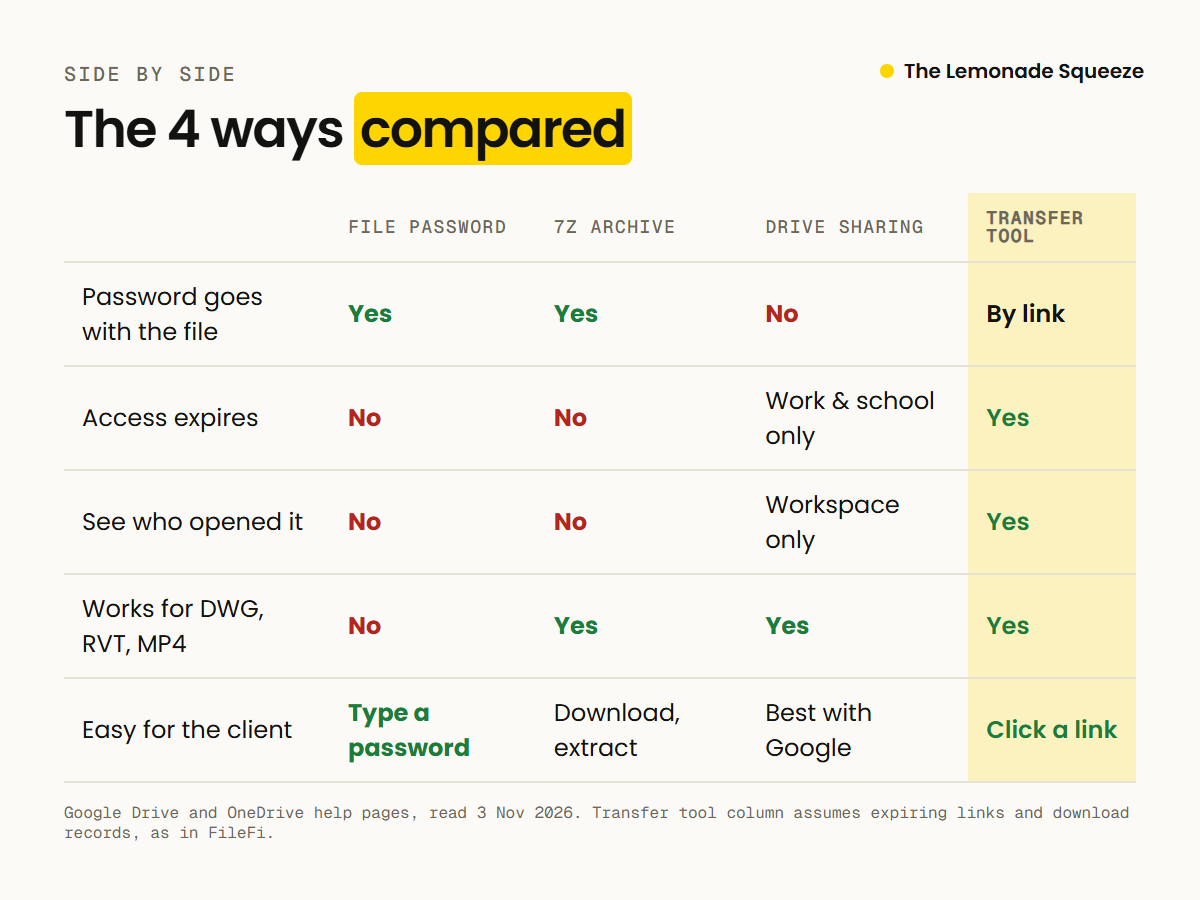
What you get instead is access control. You can share a file with named people, switch the link from "Anyone with the link" to "Restricted", and choose whether each person can view, comment or edit. On work and school accounts you can also give someone's access an expiry date, up to a year ahead (for folders, only for people with the Viewer role). Google's own help page lists that feature as available for work and school accounts, so a free personal Google account doesn't get it.
That's useful, but it isn't a password. Permissions live on Google's servers. Once a client downloads the file, it's an ordinary file on their laptop that anyone can open.
Way 1: Put a Password on the File Itself
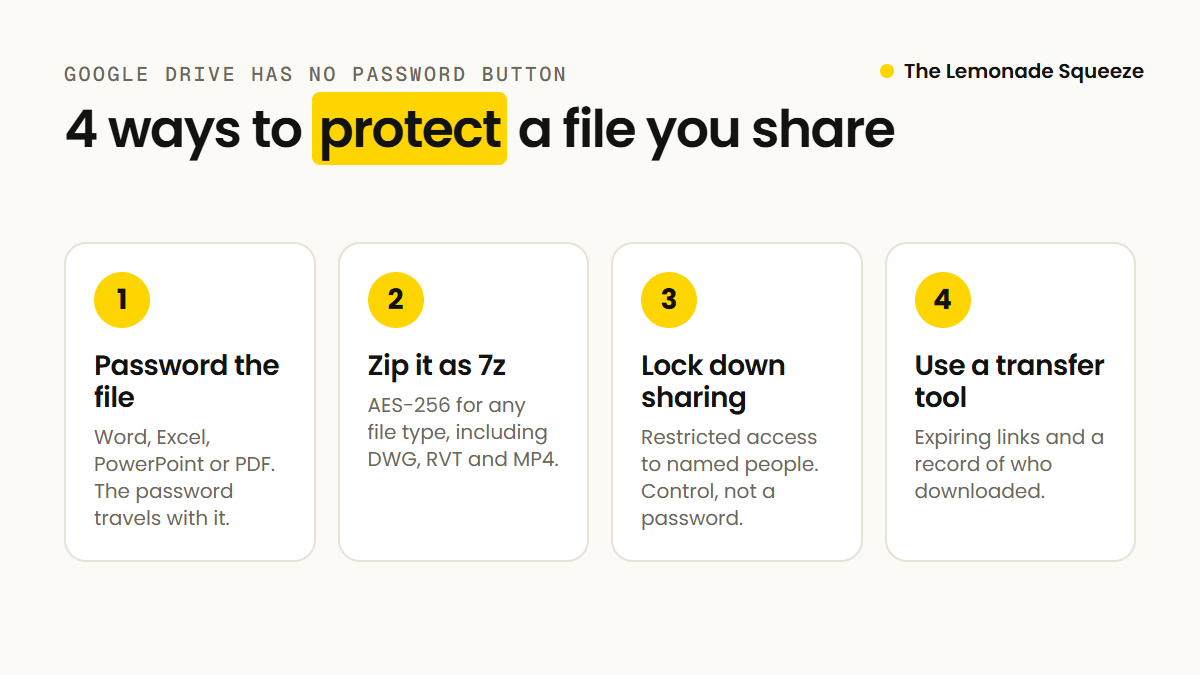
The most reliable fix is to protect the file before it ever reaches Drive. The password then travels with the file, so it still works if the link is forwarded or the file is downloaded and passed on.
- Word: File > Info > Protect Document > Encrypt with Password. Excel and PowerPoint have the same option under Protect Workbook and Protect Presentation.
- PDF: Adobe Acrobat's "Protect a PDF" tool adds a password that anyone opening the file has to enter.
Two rules make this work. Send the password a different way from the file, by phone or text, never in the same email. And use a long passphrase rather than a short word, because weak passwords on Office files can be cracked.
What About DWG and RVT Files?
This is where it gets awkward for architects and engineers. Autodesk removed drawing passwords from AutoCAD in the 2016 release, and Revit has no built-in password for project files. Your options are to export a password-protected PDF, which loses editability, or to wrap the file in an encrypted archive, which is Way 2.
Way 2: Zip It with a Password
7-Zip is free and works for any file type, including DWG, RVT and MP4. It encrypts with AES-256, a strong, widely used standard.
- Right-click the file and choose 7-Zip > Add to archive.
- Set the archive format to 7z.
- Enter a password and leave the encryption method on AES-256.
- Tick "Encrypt file names" so nobody can see what's inside without the password.
One catch: "Encrypt file names" only works with the 7z format. A password-protected .zip still shows the names of the files inside, even though the contents are locked (7-Zip's format notes).
The downsides are all friction. Every send means zipping. Your client has to extract the archive before they can open anything, and Drive can't preview what's inside. And you get no record of who opened it or when. For a one-off send to someone you trust, it's fine. For regular client deliveries, it becomes a manual chore on every project.
Way 3: Lock Down Your Drive Sharing
If you don't need a password, just tighter control, set up a shared folder properly:
- Right-click the folder and choose Share.
- Under General access, change "Anyone with the link" to "Restricted", so only the people you name can open it.
- Add each client's email address and give them the lowest role they need: Viewer, Commenter or Editor.
- In the sharing settings, turn off "Editors can change permissions and share" so nobody passes access on.
- On a work or school account, add an expiry date for anyone who only needs access for one project.
This works well for recurring client folders where you know everyone's address.
Where it falls short: permissions identify a Google account, not a person. Restricted sharing works best when your clients sign in with Google, which plenty of them won't. A named viewer can still download the file and send it on. And seeing exactly who viewed a file is a Google Workspace feature. A free account won't show you that.
Way 4: Use a Dedicated File Transfer Tool
If your week involves sending multi-gigabyte drawings, models and videos to clients, a tool built for client file delivery saves you the zipping and the guesswork. Look for four things:
- no practical file size limit
- links that expire on a date you choose
- a record of who opened and downloaded each file
- UK hosting, if your clients or contracts care where data sits
There are good options. MASV is built for very large media files. ShareFile is a long-established platform aimed at professional services firms. FileFi, our own product, handles files of any size, lets links expire, shows you who opened and downloaded each file, and keeps a full audit trail. Files sit in two UK data centres, encrypted at rest and in transit, and it costs £22 per user a month.
To be fair about fit: it isn't a replacement for Drive if your sharing is mostly internal, where your team edits the same documents. And it's newer than platforms like ShareFile, so weigh that up. If most of your sharing is client-facing and the files keep getting bigger, that's when a dedicated tool earns its keep.
How Do You Protect Video Files?
MP4 files have no password option of their own. Drive's permissions cover the whole file, so anyone with access can watch, and anyone with a downloaded copy can share it.
If the video must be password protected, use Way 2: a 7z archive with a password sent separately. The trade-off is that your client has to download and extract it before watching. If that's too clunky, a transfer tool with expiring links and a download record is the more practical route.
How Do Google Drive, OneDrive and iCloud Compare?
OneDrive does what Drive doesn't. Microsoft 365 subscribers can put a password and an expiry date on a OneDrive sharing link. For folders, both options only work with "Anyone" links (Microsoft's OneDrive help). If your firm already pays for Microsoft 365, that's worth knowing.
iCloud Drive has no file passwords. On a Mac you can make an encrypted disk image with Disk Utility, put the files inside, and upload that, which works much like a 7z archive.
Google Drive relies on permissions only, with expiry dates and viewer history reserved for work and school accounts.
Which Method Should You Use?
- A one-off Office document or PDF: put a password on the file and phone the password through.
- A one-off DWG, RVT or MP4: a 7z archive with AES-256 and encrypted file names.
- Working files your own team shares: Drive sharing, set to Restricted.
- Regular client deliveries of large files: a dedicated transfer tool with expiring links and a download record.

Questions People Ask
Can I Add a Password to a Drive Link I've Already Shared?
No. You can tighten it by switching General access to "Restricted", or by removing people, but Drive has no password option for links. Anyone who already downloaded a copy keeps it.
Why Does Gmail Turn My Attachment into a Drive Link?
Personal Gmail accounts can send attachments up to 25 MB. Anything bigger is removed and swapped for a Google Drive link automatically (Gmail Help). That's why big drawings often end up in Drive by accident, with whatever sharing settings that link happens to have.
What's the Safest Way to Send a 1 GB File to a Client?
Encrypt it before it leaves your control, with a 7z archive and a strong password, and send the password separately. If you do this every week, a transfer tool with expiring links and a download record does the same job without the manual steps.
Can Google Drive Preview a Password-Protected Zip?
No. Drive can't look inside an encrypted archive, so your client has to download it and enter the password first. The protection itself is unaffected by being stored in Drive.
Sending big files to clients every week and still zipping by hand? There's probably a calmer way. 🍋