How to Securely Send Files to Clients: Gmail, Drive
TL;DR
- Gmail confidential mode and Outlook's "Do Not Forward" option are not end-to-end encryption. Treat them as a deterrent for low-risk documents, not a guarantee.
- Gmail and Outlook cap attachments well below the size of a typical DWG, RVT or MP4 file, so large files need a link-based channel either way.
- Google Drive links should be set to Restricted with recipients added one by one. Drive has no expiry and no audit trail.
- Client-confidential transfers need expiring links, audit logs and a record of who downloaded what, which dedicated transfer tools provide as standard.
- Before you send anything sensitive, check the recipient address, the link permissions, the expiry, the file's contents and whether you can actually prove delivery.
To securely send files, use your existing channel's own protections for low-risk documents: Gmail confidential mode, Outlook's Encrypt option, or a Google Drive link set to Restricted. For client-facing transfers of large DWG, RVT or MP4 files, a dedicated tool with expiring links and an audit trail is the safer default. Here's exactly how to set each one up, and where each one falls short.
What Does "Securely Send Files" Actually Require?
A transfer method counts as secure for client data if it meets two tests: the file is encrypted while it moves and while it sits on a server afterwards, and you can control and prove who accessed it. Under UK GDPR, you're accountable for both, whichever tool you pick.
Encryption in Transit vs Encryption at Rest
Encryption in transit protects the file between your machine and the recipient's. Encryption at rest protects it on the server afterwards. Email covers the first reasonably well, but an attachment sitting in a mailbox is stored with whatever protection the provider applies, which you don't control. Gmail's confidential mode, for example, does not provide end-to-end encryption, as Google's own support page makes clear: it adds an expiry date, a revoke option and an optional SMS passcode, not encryption Google itself can't read.
Access Control, Expiry and Audit Trails
For client-facing transfers you need expiring links, recipient restrictions and audit logs showing who downloaded what and when. Email offers none of these. Drive offers partial control. Dedicated transfer tools built for this, including FileFi, make them standard.
How Do You Send Files Securely Through Gmail?
Gmail Confidential Mode: Step by Step
Open a new message, click the padlock-and-clock icon at the bottom of the compose window, and turn confidential mode on. Set an expiry from 1 day to 5 years, and optionally require an SMS passcode, which Google texts to the recipient's phone. The recipient sees a link rather than the message body, and has to verify before opening it.
Gmail's Attachment Limit
Gmail sends up to 25 MB per email; anything bigger gets swapped automatically for a Google Drive link. That's well under the size of most CAD, Revit or video files, so large client files need a link-based channel regardless of how secure you make the email itself. For the exact numbers across Gmail, Outlook.com and Microsoft 365, see our full breakdown of email attachment limits.
What Confidential Mode Does Not Do
Confidential mode is not end-to-end encryption. Google can still read the message and attachment, and a recipient can screenshot or copy the content before it expires. It also does nothing once someone forwards the link while access is still open. Where GDPR accountability matters, treat it as a deterrent rather than a guarantee, and keep your own record of what you sent, to whom, and when.
How Do You Send Files Securely Through Outlook?
Microsoft 365 Message Encryption: Step by Step
If your firm runs Microsoft 365 Business Premium or E3/E5, message encryption is already included. In Outlook desktop, start a new email, open the Options tab, select Encrypt, then choose Encrypt or Do Not Forward. In Outlook on the web, select Options, then Encrypt, and pick the same choice before sending. Full steps are on Microsoft's own support page.
When Outlook Encryption Applies to External Recipients
Encryption protects the message in transit and at rest, but the recipient's experience varies by provider. A Gmail user often gets a wrapped message and has to authenticate to read it, which is a friction point worth warning a client about in advance. Encryption also does nothing about attachment size: it protects the file, it doesn't make it smaller, so a large transfer still needs a different channel either way.
How Do You Send Files Securely via Google Drive?
Drive is convenient, but its defaults lean towards convenience, not security. The settings below take two minutes and close the gaps that cause most accidental exposure.
Sharing Settings: Step by Step
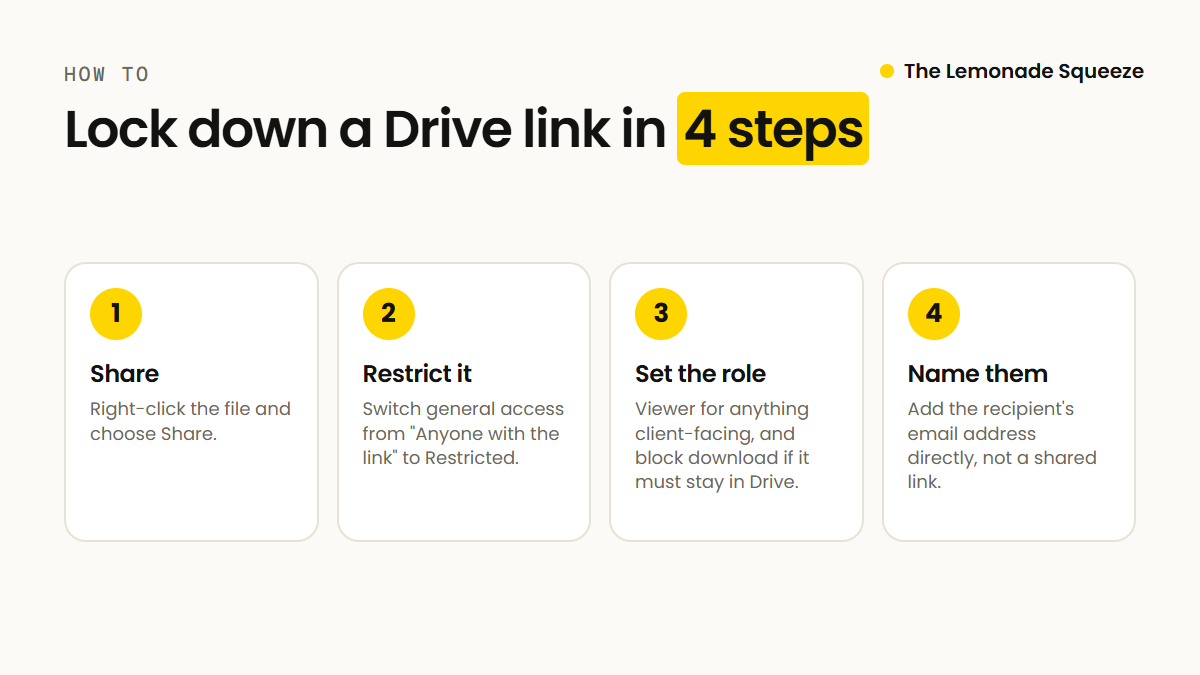
- Right-click the file in Drive and choose Share.
- Under "General access", change Anyone with the link to Restricted. This is the single most important step: it takes the link out of public reach.
- Click Viewer, then the gear icon, and untick the option letting viewers and commenters download, print or copy the file, if it must not leave Drive.
- Add the recipient's email address directly, set their role, and send. They get a notification requiring sign-in.
Full detail is on Google's own sharing help page.
Viewer, Commenter, Editor: Which to Pick
Viewer for anything client-facing. Commenter only if you genuinely want feedback on the document itself. Editor lets the recipient delete the file, change sharing settings and invite others, which is rarely what you intend for a DWG or RVT you've sent for review.
The Link-Sharing Mistake Most Firms Make
Someone decides "Restricted is annoying" and switches back to "anyone with the link". That link now works for anyone who gets forwarded it, forever, with no expiry and no record of who viewed what. If you need expiring links or proof of who downloaded a file, Drive can't give you either, and that's the point where a dedicated transfer tool earns its keep.
When Is Email Encryption Not Enough to Send Files Securely?
Email and Drive both work fine for a 2 MB PDF. They break down on the three things a client-facing transfer in AEC or professional services actually needs: moving large files, proving who accessed them, and controlling the link after it leaves your hands.
| Channel | Good for large files? | Control after you've sent it |
|---|---|---|
| Gmail / Outlook attachment | No, both cap out well under a typical CAD or video file | None |
| Google Drive link | Yes | Viewer, commenter or editor, settable |
| Dedicated transfer tool | Yes, set by your plan | Expiry, audit trail, revocation |
No Audit Trail, No Expiry, No Control After Send
Drive's sharing model defaults to "anyone with the link", and the settings are easy to get wrong under deadline. Once a link is forwarded, you can't recall it. For GDPR accountability, "we think only the client had it" isn't an answer that stands up to scrutiny.
What Is the Best Way to Send Files Securely to a Client?
How the Main Options Compare
Against the criteria above (encryption at rest, expiring links, audit trails, no size ceiling that forces a workaround) email falls out first: it offers no audit trail and a low attachment cap. ShareFile, MASV and Files.com all handle large files with tracking, but price per seat or per volume, which stings a 2-25 person firm. WeTransfer is fine for low-sensitivity sends but gives you no audit trail you could show a client.
Running FileFi Through the Same Criteria Honestly
FileFi launched out of private beta on 29 October 2026, so it doesn't yet have the multi-year track record that ShareFile or Files.com have built up, and that's a fair reason to test it before trusting it with client work. What we can commit to on paper: files of any size, a full audit trail on every transfer, links that can expire, and two UK data centres, encrypted at rest and in transit, at £22 per user a month. The honest test isn't our word, so ask any vendor, us included, for the specifics behind each claim rather than taking a homepage at face value.
Decision Framework by File Size and Sensitivity
Small and internal: email is fine. Large but not sensitive: WeTransfer or a dedicated transfer tool. Large and client-confidential, where you need audit logs and UK data residency: a dedicated tool built for exactly that, which is the gap FileFi targets.
What Should You Check Before Hitting Send on a Sensitive File?
Run this checklist before any client-facing transfer, whatever channel you chose above.
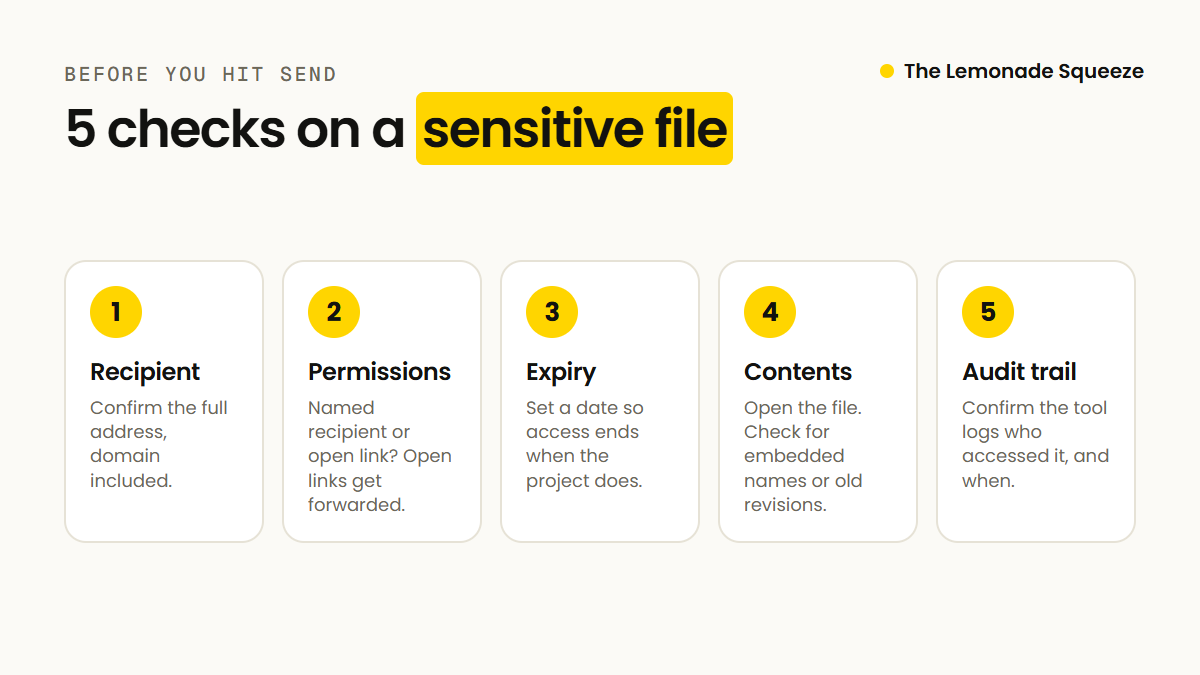
- Recipient address. Confirm the full address, including the domain. A typo in a client's domain sends your DWG to a stranger with no way to recall it.
- Permissions. If you used a link rather than naming a recipient, check whether it's restricted to specific people or open to anyone who has it. Open links get forwarded.
- Expiry. Set an expiry date so access ends when the project does. Gmail and Outlook attachments can't do this; dedicated transfer tools can.
- Contents. Open the file before sending. DWG and RVT files often embed client names, survey coordinates or earlier revisions you didn't mean to share.
- Audit trail. Confirm the tool logs who accessed the file and when. If you can't prove delivery, you can't answer a client, or a GDPR question, about it later.
A client will forgive a slow transfer. They won't forgive you not being able to say who opened the file, and when. 🍋
FAQ
Is Gmail Confidential Mode Actually Secure for Sending Client Documents?
It's a deterrent, not a guarantee. Confidential mode doesn't provide end-to-end encryption, so Google can still read the content, and a recipient can screenshot or copy a message before it expires. It offers no audit trail and no protection once someone forwards a link while access is still open. Treat it as suitable for low-risk documents only.
How Do I Securely Send a 2 GB CAD File That's Too Large for Email?
Email attachments cap out well under 2 GB, so a file that size needs a different channel. Use a Drive link set to Restricted with recipients added individually, or a dedicated transfer tool with expiring links and an audit trail. Where you need to prove who accessed a client-confidential file, the dedicated tool is the safer default.
Can I Password-Protect a Zip File Instead of Using a Transfer Service?
You can, and it protects the file itself, but that solves only half the problem. You still have no expiry, no audit trail and no way to revoke access after sending, and the password has to travel through a separate channel anyway. Fine for an occasional low-risk send, not for an accountable client transfer.
Do I Need UK Data Residency for File Transfers Under GDPR?
Not strictly, but it simplifies accountability. GDPR requires you to control and prove who accessed client data regardless of where it's stored, and data split across regions makes that harder to demonstrate. UK residency keeps client data under UK jurisdiction, which is worth asking any vendor about directly.