WordPress Password Protect Media Files (And When to Use Something Else)
TL;DR
- WordPress page passwords only protect the page, not the files behind it. Anyone with a direct URL to a PDF, DWG or video in /wp-content/uploads/ downloads it without a password prompt.
- Files live on your web server and are served directly by Apache or nginx, bypassing WordPress entirely. The password check only happens in PHP, not at the file level.
- Real protection needs a rewrite rule that routes file requests through PHP, or offsite storage with signed, expiring links (like FileFi).
- Test by opening the direct file URL in an incognito window. A 200 response means the file is public; 403 or 404 is what you want.
- WordPress logs no downloader identity, timestamp or IP for file access, so client deliverables needing audit trails belong on dedicated platforms.
WordPress page passwords give you peace of mind that doesn't match reality. When you password-protect a post and upload a PDF to the media library, you've protected the page but not the file. Anyone with the direct media URL can download the PDF without ever seeing your password screen.
Why WordPress Password Protection Fails on Media Files
Because the password protects the page, not the file. When you password-protect a post in WordPress, the system checks your password before rendering the page content. The file itself lives in /wp-content/uploads/, and WordPress never gets involved when someone requests it directly.
WordPress Is a Router, Not a File Gatekeeper
WordPress only runs on requests routed through its template system. Uploaded files are served by your web server (Apache or Nginx) straight from disk, bypassing WordPress entirely. Anyone with the URL can fetch the file, password or no password. That's how the internet works: your web server has one job - serve files quickly. It doesn't know about WordPress passwords, and it shouldn't.
What This Means for Client Deliverables in /Wp-Content/uploads/
If you upload a PDF, DWG or MP4 and link it from a password-protected page, the page is protected but the file is not. One shared URL, one search engine index, or one forwarded email and the file is public. That gap matters for GDPR accountability. It's why some firms move deliverables to platforms built for this job, like FileFi or ShareFile.
How to Actually Protect Your Media Files
Option 1: Route File Requests Through PHP (If Your Files Are Under 1GB)
On Apache shared hosting, place this in /.htaccess in your site root:
RewriteEngine On

RewriteRule ^wp-content/uploads/.*\.(pdf|dwg|rvt|mp4)$ /wp-content/plugins/your-plugin/serve-file.php [L]
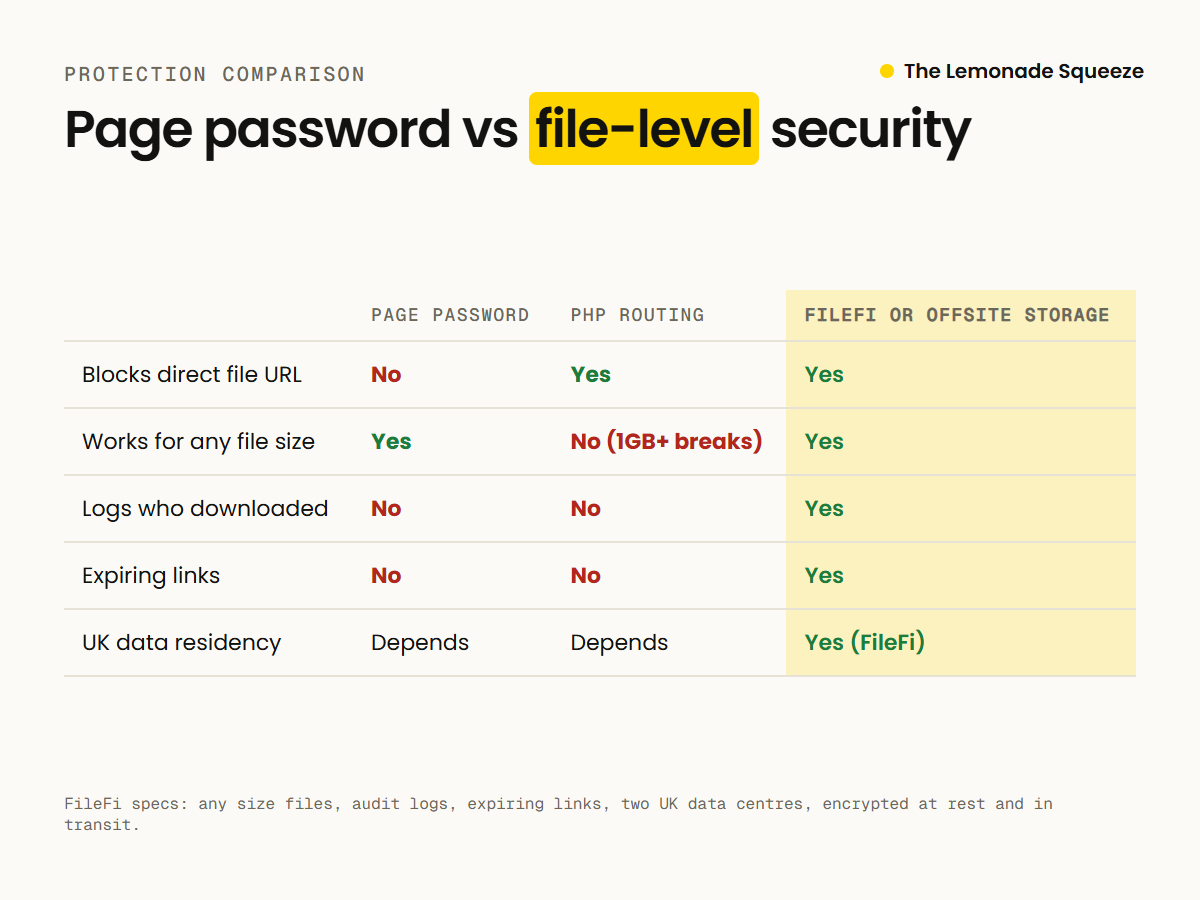
The serve-file.php script then calls auth_redirect() or checks is_user_logged_in() before streaming the file. This is the only approach that genuinely stops direct access to the file, because every request runs through a PHP check first.
The catch: serving a 2GB file through PHP ties up a web worker and hits memory or timeout limits. It's workable for PDFs and small videos, fragile for large deliverables.
Option 2: Block by Extension and Scope (Cheaper Than Routing Through PHP)
If you want to deny all access to sensitive file types without routing through PHP, use mod_authz_core on Apache:
<FilesMatch "\.(pdf|dwg|rvt|mp4)$">

  Require all denied

</FilesMatch>
This denies everyone, so combine it with the rewrite approach for logged-in users to get around it. On nginx, you need server-level access (which rules out shared hosting) to add a location block in the server config.
Option 3: Use a Subfolder and Offsite Storage (Best for 1GB+ Files)
Upload sensitive deliverables to a subfolder like /wp-content/uploads/private/ and deny that folder wholesale at the server level. For large files or complex access needs, object storage with signed URLs lets you serve the bytes directly without PHP overhead. Signed links contain a cryptographic signature and an expiry timestamp, so access is governed server-side.
Dedicated file-sharing platforms handle this as their core job. FileFi, ShareFile, Files.com and similar sit in this category. WeTransfer is adjacent but not designed for contractual file handling. The honest tradeoff: files leave your WordPress server, so you're trusting that platform's access controls and data residency instead of your own.
Data Residency and Audit Trails: WordPress vs Purpose-Built Storage
WordPress hosting is built for pages, not for repeatedly serving multi-gigabyte files with audit trails. Out of the box, WordPress logs almost nothing about file access. No downloader identity. No timestamp. No IP address. Direct-URL downloads often bypass even the logging plugins can add.
If a client asks who accessed a file, when, and from where, WordPress usually cannot answer. For UK clients who care about data residency, files sitting on non-UK hosting raise questions about adequacy arrangements and personal data leaving the country on every download.
FileFi keeps full audit logs, tracks who opened and downloaded each file, lets you set expiring links, and sits on two UK data centres with encryption at rest and in transit. It costs £22 per user per month. Most of the time, WordPress with the protections above is fine for internal files and low-sensitivity work. When a client needs audit trails or you want the certainty of knowing where your data lives, dedicated storage pays for itself.
Test Your Setup: The Incognito Window Check
Open a private browsing window and paste the direct file URL (for example, /wp-content/uploads/2024/05/client-drawing.pdf). If the file opens, plays or downloads, your page password is doing nothing. Repeat with a logged-out mobile browser on cellular data, since cached sessions can mask the problem.
Use your browser's developer tools, Network tab, and check the HTTP response code. A 200 means the file is served to anyone. A 302 redirect to a login page is better but leaks that the file exists. A 403 or 404 is what you want.
One more thing: search Google for site:yourdomain.com wp-content/uploads. Any result means the file URL is public, and the search engine indexed it. If a client deliverable appears, remove the file and ask Google to recrawl.
Client deliverables matter. WordPress handles them with some care, but it was never built for the job. When in doubt, a dedicated platform built for secure file sharing takes the guesswork out of it.